Overview
The JavaScript Plugin (Web SDK) is the recommended method to add Vouched to your web app. This code is hosted by you, and provides an optimal balance of customizability and ease of implementation.
Configuration
The JS Plugin requires the Vouched Public Key. If you don't have a public key, you generate one by following the steps outline in our Keys Page.
Quick start code
Once you have a Public Key, take a look at our quick start code here.
Important parameters
Here are some important parameters to consider when implementing the JS plugin. You can see the full list of JS Plugin parameters here.
Type
There are three different modes available when running the JS Plugin:
ID + Selfie: The user is asked to submit a picture of their ID and a selfie. This is the default and recommended option.
ID only: The user is asked for ID only. No selfie.
Reverification: Reverify a user. Learn more about reverification here.
Used in the JS Plugin:
type: idv // id + selfie mode
type: id // id-only mode
type: reverification // reverification mode
Mobile handoff
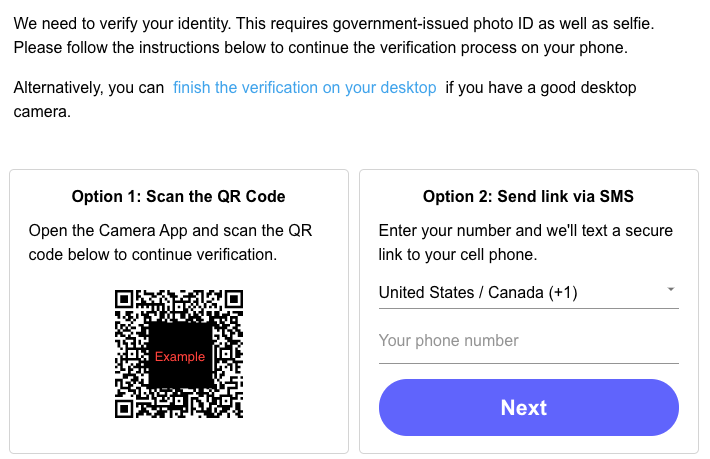
If the user starts their verification on a desktop, we recommend they use their mobile device camera in order to capture and submit the best quality images. The user can transfer the verification process to their phone by scanning a QR code or via an SMS link:
 Used in the JS Plugin:
crossDevice: true, // enable the base mobile handoff feature
crossDeviceQRCode: true, // show a QR code for the user to scan
crossDeviceSMS: true, // show an SMS box for the user to receive an SMS link
Once the user is finished the process on their mobile device, they can continue back on their desktop.
For the mobile handoff option, a new job is created during each refresh, to generate a token to be used on the mobile device. However, empty jobs are not billable.
Once the verification is completed, the JS callback onDone is called on the desktop.
Liveness
Vouched recommends including a liveness check to make sure your users are capturing authentic selfie images. Learn more about liveness here.
Barcode scan
When a user scans their ID, Vouched has the ability to scan the barcode on the back of the ID (when applicable). Vouched then compares the data on the front of the ID to the data from the barcode to make sure they both match.
If an ID does not have a barcode, this step is automatically skipped.
Used in the JS Plugin:
includeBarcode: true, // enable barcode scanOther settings
There are several more additional settings that can be configured in the JS Plugin. For a full list of possible parameters and objects, please see the JS Plugin developer reference page here.
Comments
0 comments
Please sign in to leave a comment.