On the Jobs page, you can see a list of all the verification jobs that have been run in your Vouched account.
To access the Jobs page, click Jobs on the left menu of the Vouched Dashboard:
Job statuses:
Each job has one of the following statuses:
- Approved - The verification process was completed and approved.
- Active - The verification process is still in progress. This usually means the user is not finished yet.
-
Approved with Warning(s) - The verification process was completed, but may require a review. Some examples where a job will still be approved but will include a warning:
- ID was expired.
- Candidate received a low Crosscheck Identity score.
- Rejected - The verification process was completed and rejected.
- Removed - The job was deleted.
Filtering Job results
By default, the Jobs page displays all verification jobs in your Vouched account. You can filter which jobs appear on the Jobs page by clicking on the Filter icon at the top of the jobs page.
You will see a list of different drop downs and inputs that can be customized to display jobs according to specific criteria.
For example, to show jobs that have are completed, approved, and range between April 1 2023 - May 1 2023, we can set job filters as follows:
-
Status:
Completed- only show completed jobs -
Success:
Only- only show approved jobs -
From:
04/01/2023- only show jobs that were created on or after April 1 2023 -
To:
05/01/2023- only show jobs that were created up until or before May 1 2023
Job details
When you click on a job from the jobs, the job details will appear. This section includes the photos that were submitted with the job, as well as a number of tabs with additional information related to the job.
Summary tab
The Summary tab provides the key details about the job at a glance. Each field is explained below:
- ID: A unique identifier for the job.
- Reviewed: A checkbox to mark when you or another member of your team manually reviewed the job. When looking for jobs, you can filter your search to only jobs that were reviewed.
- Status: explained above.
-
Valid ID: Checks if the ID picture is valid and passes all visual checks.
- Device Info: The device type from where the candidate made the request, e.g. Macintosh, Windows, etc.
-
Capture Type: Our JS Plugin has an auto-capture feature that is designed to take the best shoot. If it couldn't do so, after a few attempts, the user has an option to take the picture manually. automatic/manually
- Valid Selfie Checks if the selfie picture is a valid photo and passes liveness tests.
- Face Match: Checks if the face in the ID photo matches the face in the selfie.
- Expiration Date: If the ID expired, this field will be marked with an orange Warning symbol. The job will not be rejected based on the ID Expiration Date.
- Name (optional): If the candidate's birth date is included in the job request, this section checks if the birthday that was submitted matches the birthday extracted from the candidate's ID document.
- Birthday (optional): Vouched has the ability to include the candidate's first and last name in the initial job request. If the candidate's name is included, this section checks if the name that was submitted matches the name extracted from the candidate's ID document.
- DLV (optional): If a DLV check was run on the ID verification job, this section indicates if the DLV check passed or failed.
- AML (optional): Red indicates presence on the Sanction/Warning lists. Orange indicates a presence on one or multiple PEP lists.
- IP Address (optional): IP address is in the same geographic region as the address on the ID.
More information about scoring and thresholds is available in the scores tab.
Review tab
The review tab allows you to manually override a job's approval decision. To manually review and override a job's approval status, open the job from the Dashboard and navigate to the Review tab:
The grey status icons on the right (inline in purple) are the job results. Icons with an x symbol indicate a check that Vouched marked as a failure. Click on the grey icon to change its status:
Jobs can also have their status updated programatically with the Update Job Review API.
Request tab
This tab contains all the information that was included with the job, such as the candidate's:
- Name
- Phone number
- Email address
- Device information
- IP Address (if IP address feature is enabled)
Location tab
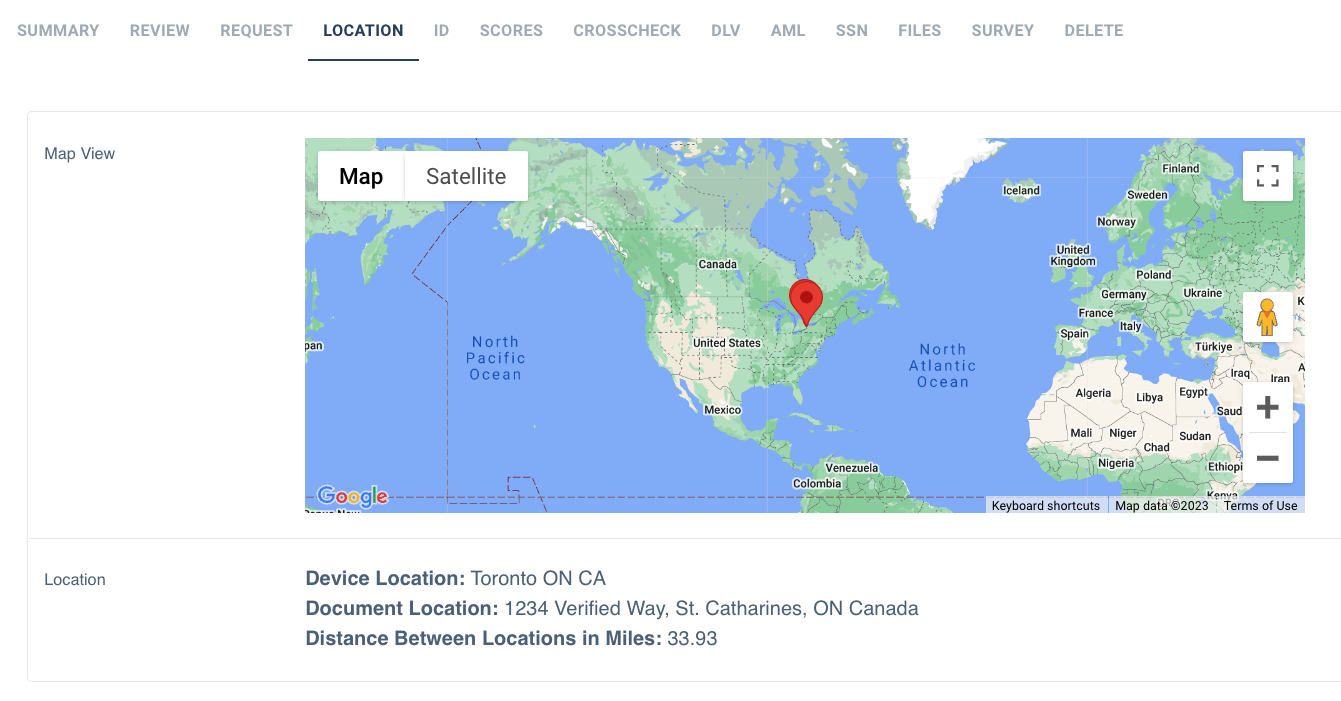
If the IP and physical address inspection features are enabled, the Location tab shows a map with a pin marked for the user's device location and address extracted from their ID. It also calculates and displays the distance between the two locations:
 ID tab
This tab contains all the information that was extracted from the ID such as:
- ID type
- ID state
- ID country
- ID number
- First and Last Name
- Date of Birth
- Expiration Date
- Gender
If the barcode feature is enabled, the bottom of the ID tab will include a section where the extracted barcode information is displayed.
Scores tab
This tab contains a score between 0 to 1 for each of the following:
- ID: overall identity score of the ID
- Selfie: overall identity score of the selfie
- Face Match: overall score of how closely the selfie photo matches the ID photo
- Name Match (Optional): If the name was submitted, the score of how closely the submitted name matches the name extracted from the ID
- Birth Date Match (Optional): If the birthday was submitted, the score of how closely the submitted birthday matches the name extracted from the ID
- Barcode Match (Optional): If the barcode feature is enabled, the score of how closely the barcode data matches the data from the front of the ID
By default, each score defined above has a passing threshold of 0.9. This means the following:
- In order for the job to be approved, all scores described above need to be at least 0.9 or higher.
- If any one of the scores above fall below 0.9, the job will be rejected.
Scoring thresholds are customizable and configurable to your specific verification requirements. Please reach out to our support team if you have any questions about configuring thresholds.
Crosscheck tab
Learn more about Crosscheck here.
DLV tab
Learn more about DLV here.
AML tab
Learn more about AML here.
SSN tab
Shows the SSN check results. SSN is currently only available as a standalone API check.
Learn more about SSN here.
Files tab
The files tab provides an easy way to download a PDF report of the job.
- The Report link generates a PDF file with the job data, results, scores, device info, and photos.
- The NoConfReport link link generates the same PDF file, but without the scores.
Job PDFs can also be retrieved programatically with the Download Job PDF API.
** Note: If a job's selfie image is rejected, the selfie image will not appear in the PDF report file.
Delete tab
This tab allows for the job data to be deleted. Please be extremely careful before deleting a job. Once a job is deleted, it is not recoverable.
Jobs can also be deleted programmatically any time with the Delete Job API.
Comments
0 comments
Please sign in to leave a comment.